3 Useful Tips When Using Data Management

The Data management workspace is a handy tool that allows you to manage data within Dynamics 365 Finance & Supply Chain Management – you can import, export, copy data to another legal entity, and integrate data to another system via Dual write as well.
In this blog, we’ll touch on three simple tips that you can use and may come in handy in the future whenever you need to import or export data within the system.
Input data via front-end and export the data management template
When importing complicated data such as master data for the first time, it can be very overwhelming. Aside from the number of fields a table or data entity might have, it can be a bit tricky to figure out which value goes to which field when you directly enter values on the template. Front-end labels and table field names do not always match, and it’s easier to enter values manually via the interface for all possible fields that you will use first—before exporting the template via Data management. Once you’ve exported it, you can compare the values in the template with the values in the front-end, and it’ll be easier for you to map and manage your data.
Field metadata
Now that you’ve properly mapped the values from the front-end to the values you exported in your template, you can manually enter data in your source format. Let’s say your template is in Microsoft Excel format, and you populate it with data in the correct columns.
However, it’s a pain in the neck when during import, the system keeps throwing you vague errors about invalid data or wrong data types. It is important to know the characteristics of the fields for you to input the correct values in a template. These can either be maximum character lengths for the fields, data types, or mandatory fields that were missed out on.
In the system, you can check this out before uploading via System administration > Data management workspace > Select a data project > Select the entity > Entity attribute.
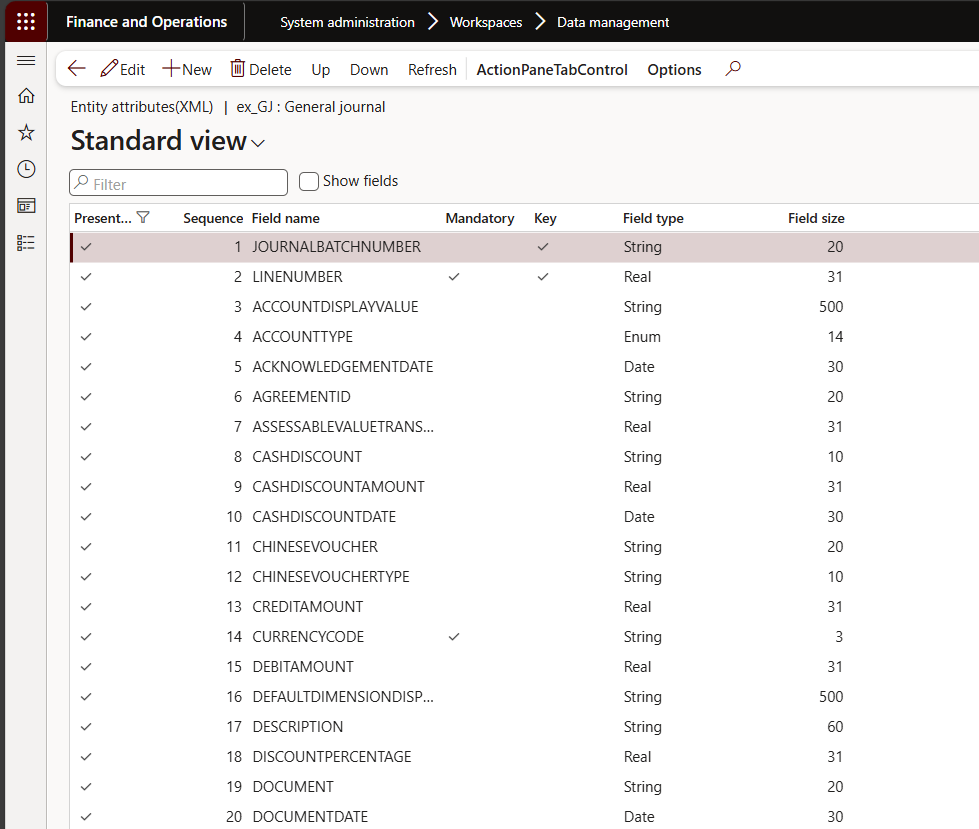
Knowing the field data types and maximum character lengths for the entity fields will aid you in correctly populating the data management template.
Correct template values, missing system setups
Sometimes, it is inevitable to still encounter errors even when you’ve correctly filled out your template. The system will notify you that your upload was partially successful, only to discover that it’s caused by some values which have not been setup in the system but should have been configured.
First, you configure the missing setups in the system, then, you import. However, you don’t need to repeat all the steps of importing data from the very beginning. You can just pull up the Job history and select the record and run the erroneous records for import so that only those that were invalid can be imported. In the Data management workspace > Job history > Select a record > Execution details > Entity processing status fast tab > Click View staging data.
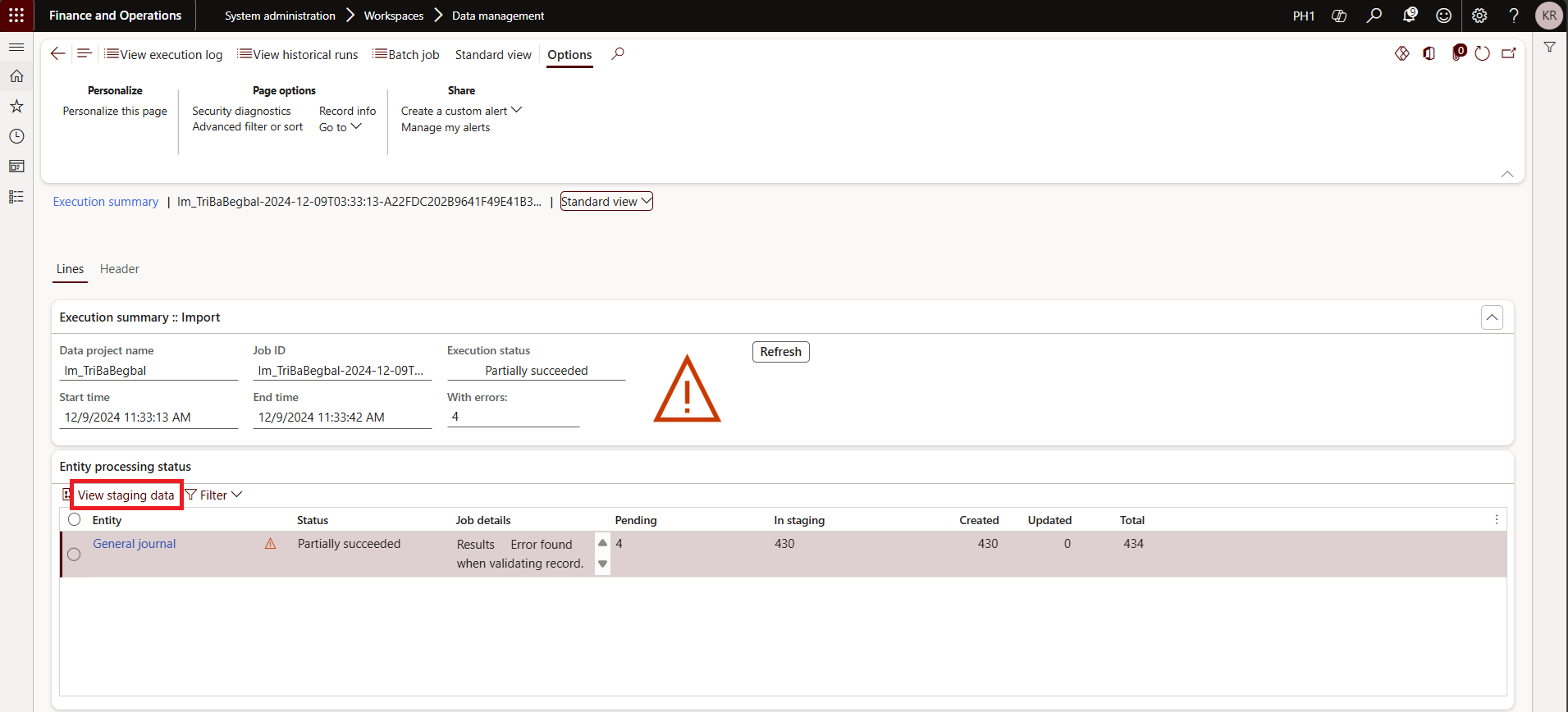
Here, you can easily filter by Staging to target status = Error. Once you have completed configuration of the missing setups, you can click on Copy data to target on the action pane, Run for: Criteria, and set the toggle for Rows with previous errors to Yes.
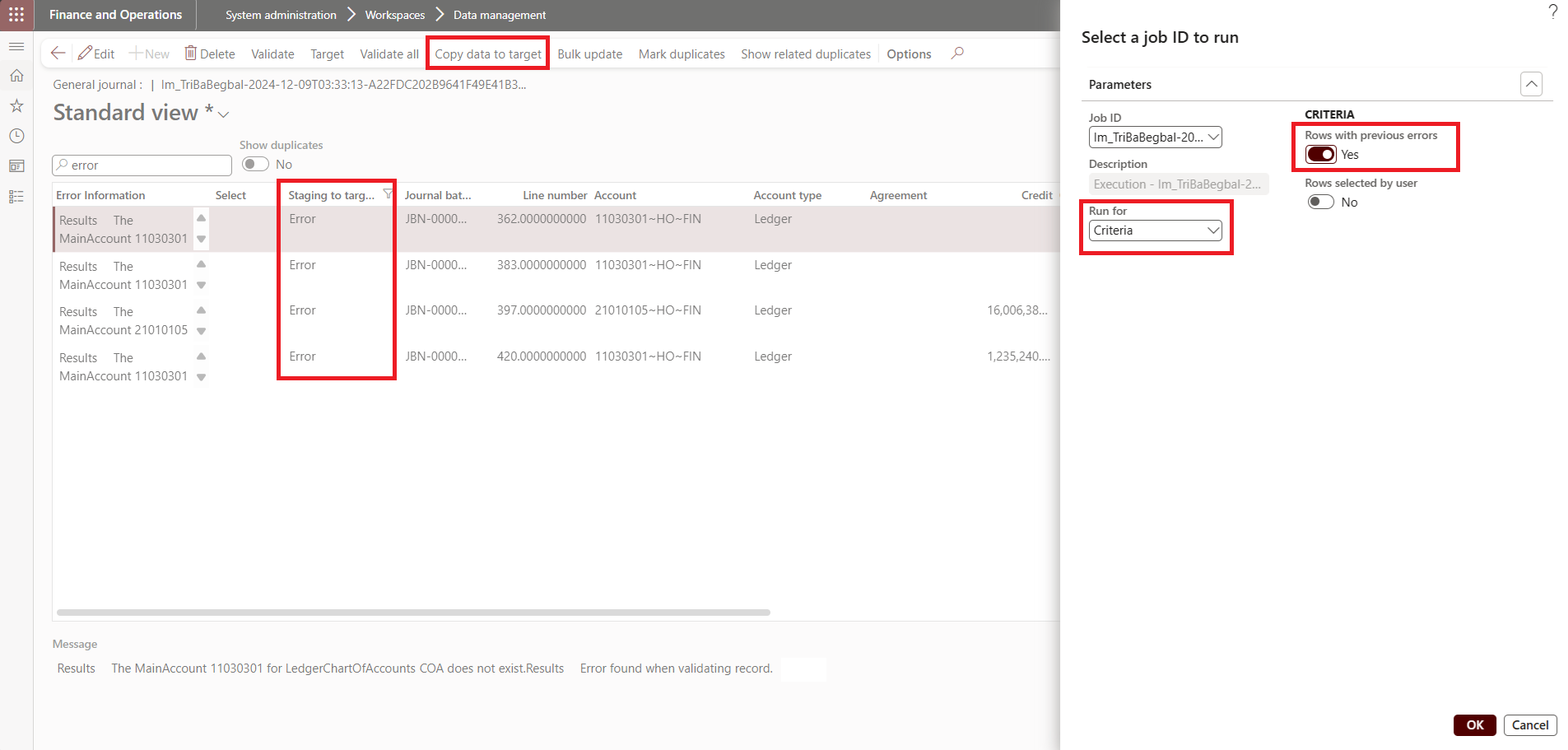
Once you click OK, only the erroneous records will be uploaded.
There are a lot more that we can discover as we continue to explore. Hope these simple and useful tips aid you during your Data management journey.
Til the next blog!
Solutions that solve
We optimize business applications and provide effective software solutions.